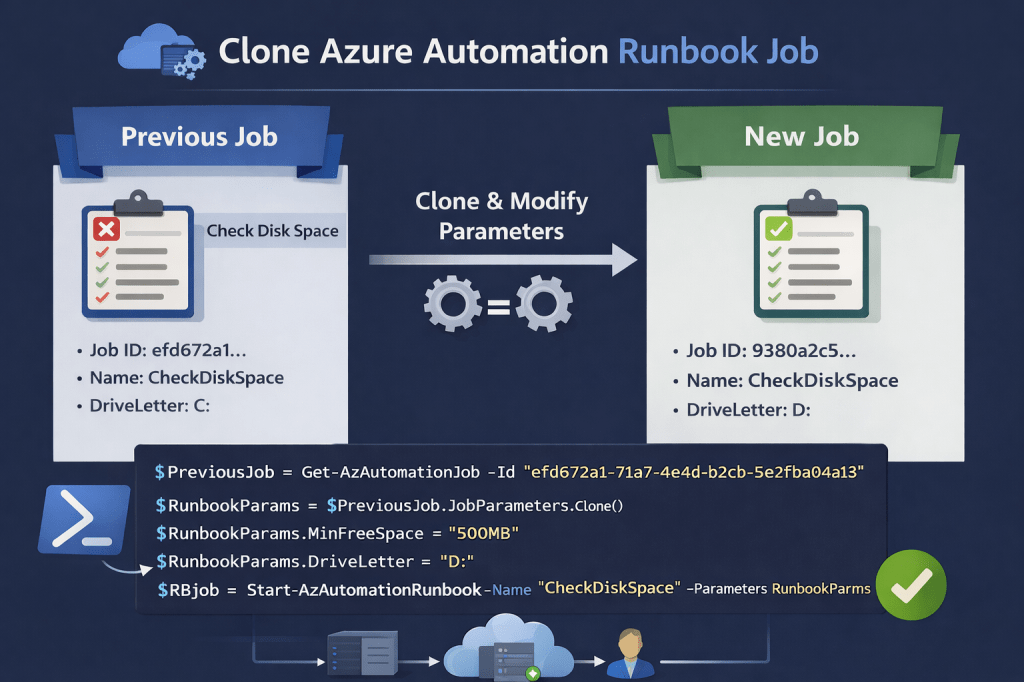
This PowerShell script demonstrates how to re-trigger an Azure Automation runbook using the exact parameters of a previous job, while still allowing you to override individual values before starting the new run.
This approach is extremely useful , especially when a runbook failed due to temporary issues or incorrect input. Instead of manually reconstructing all parameters, the script clones the previous job configuration and lets you selectively adjust only what needs to change.
It works for cloud jobs and Hybrid Worker jobs and keeps your automation consistent, traceable, and easy to re-run.
Prerequisites
# Install the Az.Automation module if required
# Install-Module Az.Automation -Force
# Sign in and select your subscription
Connect-AzAccount
Set-AzContext "Your Subscription"
Define Automation Context
First, define the Automation Account, Resource Group, and the Job ID of the runbook execution you want to clone.
$AutomationAccountName = 'DEMO-Automation'
$ResourceGroupName = 'RG_Azure_Automation'
$JobId = '<Azure Automation JobID>' # Previous Job ID
$AutoAccount = @{
AutomationAccountName = $AutomationAccountName
ResourceGroupName = $ResourceGroupName
}
Get the Previous Job
The next step is to retrieve the original Automation job. This gives us access to the runbook name, parameters, and Hybrid Worker configuration.
$PreviousJob = Get-AzAutomationJob @AutoAccount -Id $JobId
Clone Runbook Parameters
Now comes the key part. We clone the Automation context and rebuild the parameter hashtable based on the previous job execution.
# Clone base settings
$StartRunbook = $AutoAccount.Clone()
# Add runbook name
$StartRunbook.Add('Name', $PreviousJob.RunbookName)
#Preserve Hybrid Worker if used
if(-not [string]::IsNullOrEmpty($PreviousJob.HybridWorker))
{
$StartRunbook.Add('RunOn', $PreviousJob.HybridWorker)
}
#Clone parameters
if ($PreviousJob.JobParameters.Count -gt 0)
{
$Parameters = @{}
$PreviousJob.JobParameters.GetEnumerator() | ForEach-Object { $Parameters.Add($_.Key, $_.Value) }
$StartRunbook.Add('Parameters', $Parameters) }
Override Selected Parameters
Once all parameters are cloned, you can selectively override individual values without touching the rest. This is ideal for retry scenarios or test runs.
$StartRunbook.Name = "CreateUser"
$StartRunbook.Parameters.UPN = "test@test.com" $StartRunbook.Parameters.givenName = "givenname"
Start the New Runbook Job
Finally, start the runbook with the cloned and adjusted configuration.
$RBjob = Start-AzAutomationRunbook @StartRunbook $RBjob
Result
This technique allows you to:
- Re-run failed jobs with minimal effort
- Guarantee parameter consistency across executions
- Reuse Hybrid Worker assignments automatically
- Override only the values that actually need to change
- Improve operational efficiency and troubleshooting speed
Conclusion
Cloning Azure Automation runbook parameters from previous jobs is a powerful but often overlooked technique. With just a few lines of PowerShell, you can turn failed or completed jobs into reusable execution templates.
Happy automating! 🚀
 Powershell Works